한국어 | English
DrumPen User Guide (Beta)
Click the grid. Get a drum chart. Whole songs — lyrics included. Play it back. Print it out.
This guide is for desktop browsers (Chrome or Edge recommended). What works differently on a tablet is collected in 11. Using a tablet, and on a phone in 12. Using a phone.
1. Getting started
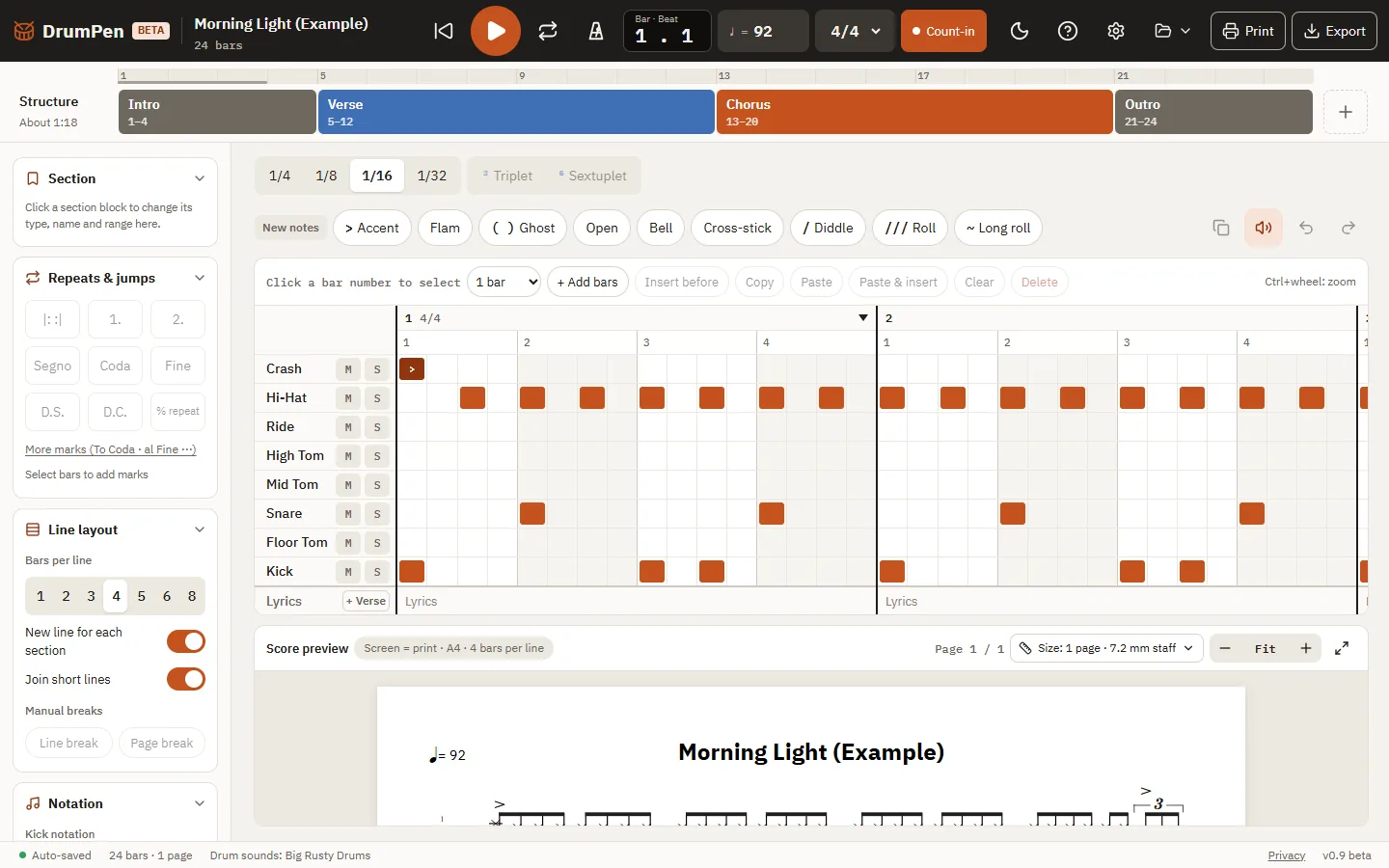
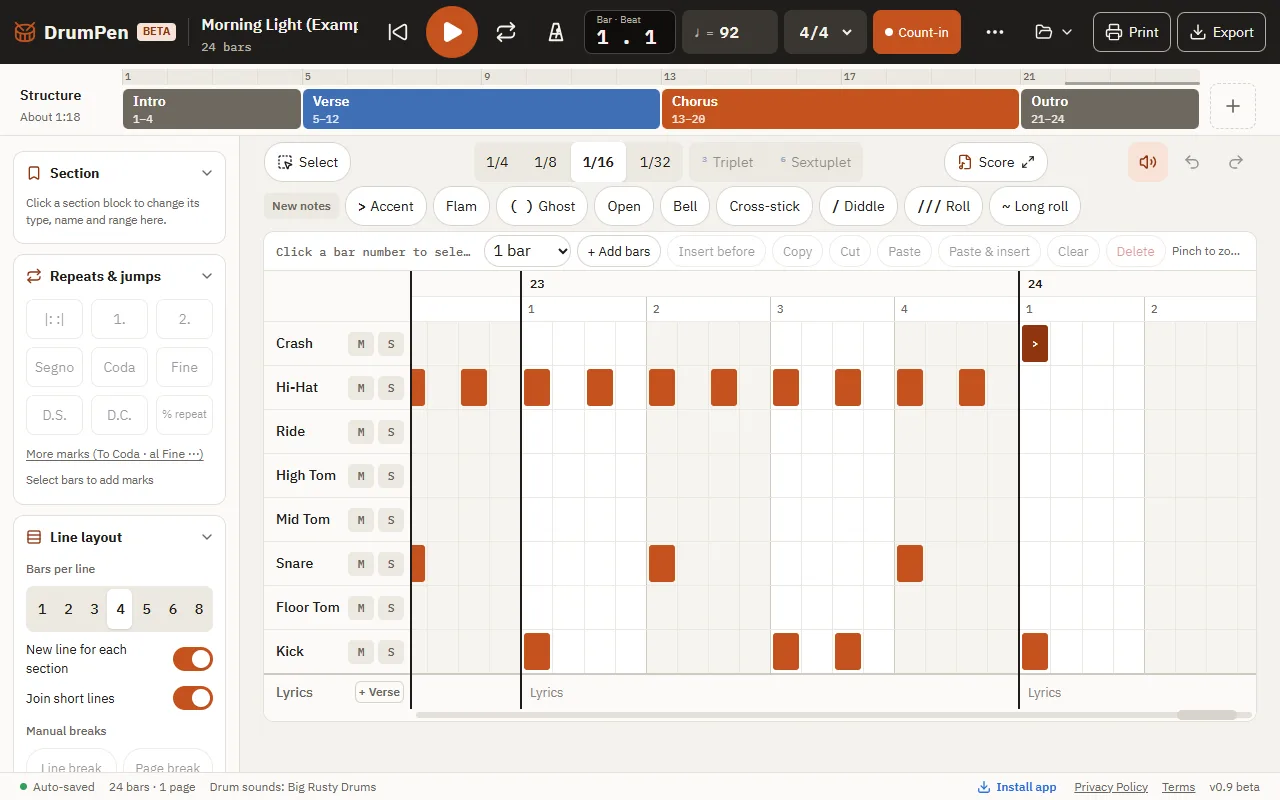
The screen
| Area | What it does |
|---|---|
| Top bar | Song title, play/stop, loop, metronome, tempo, time signature, count-in, File menu, Export |
| Structure (section bar) | The song's sections (Intro, Verse, Chorus…) and a ruler with bar numbers |
| Left panel | Section / Repeats & jumps / Line layout / Notation / Print size |
| Grid | Where you enter notes. From the top: Crash, Hi-Hat, Ride, High Tom, Mid Tom, Snare, Floor Tom, Kick |
| Score preview | Your notes as a drum chart, right away. What you see is what prints |
| Bottom bar | Save status, number of bars and pages, file status (plus Install app on tablets) |
Your first visit
A welcome screen appears with the example song "Morning Light" already open. Take the tour walks you through 4 steps; Start now lets you dive right in. To see the tour again, use Help (?) → Take the tour again at the top. This guide is always available from Help (?) → User guide.
Starting a new song
File > New song. Click the song title at the top left to rename it. Set the tempo and time signature in the top bar.
2. Entering notes
- Click a cell to add a note; click it again to remove it.
- When notes or a range are selected, clicking another cell doesn't change any notes — it only moves the selection to that cell. Click once more to add a note there.
- Resolution (1/4, 1/8, 1/16, 1/32): the buttons above the grid or the number keys 1–4. Only the cell size changes; notes you've entered stay put.
- Selecting beats: click a beat number above the grid to select that beat (all instruments). Shift+click extends the selection, even into the next bar. A selected beat works like any range: copy, paste or clear it.
- Triplets and sextuplets: each beat can be straight, triplet or sextuplet. Select beats and press "³ Triplet" (T) or "⁶ Sextuplet" (Shift+T) above the grid to switch them all. Press the highlighted button again to go back to straight. You can also right-click a beat number and choose "Make straight / Make triplet / Make sextuplet". With no beat selected, it changes the beat of the cell you clicked last.
- You get the cells you picked: a triplet beat has 3 cells (8th-note triplets) and a sextuplet beat has 6 (16th-note sextuplets), whatever the resolution (1/4–1/32). Resolution only changes straight beats. The beat number shows ³ or ⁶.
- In the score, triplet beats are bracketed "3" and sextuplet beats "6" (even if you only use the triplet slots, a sextuplet beat is written as 16th-note sextuplets with rests).
- If the notes don't all fit (four 16ths into a triplet, say), overlapping notes on the same instrument are merged and you're told how many. Switch straight back and the original notes return exactly (Ctrl+Z works too).
- Triplets and sextuplets aren't used in 6/8 or 12/8.
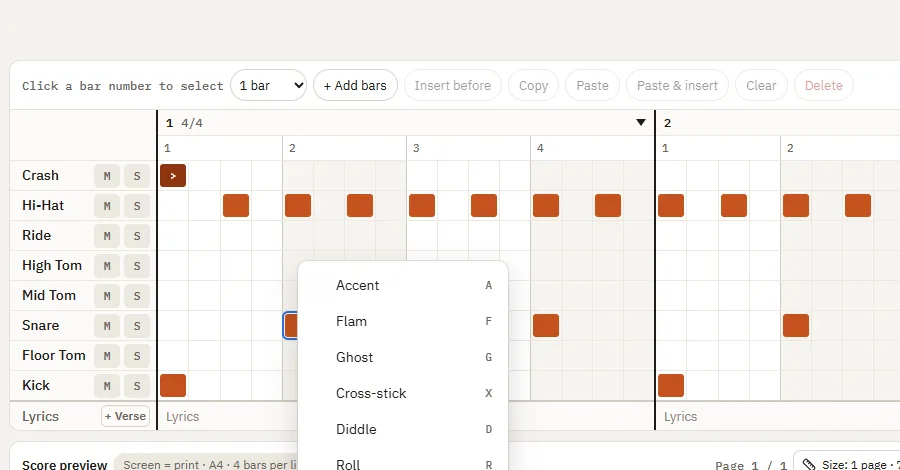
- Accent, Flam, Ghost, Open, Bell, Cross-stick
- Pick a note option above the grid first, then click cells to enter notes with that option.
- To change a note you've already entered, right-click it.
- To change many notes at once, drag across the grid to select a range (or click a beat number), or click a bar number to select bars, then press an option button (or its shortcut — A, O, D and so on — or right-click inside the selection). It applies to the notes inside: Open only to the hi-hats, Accent to every instrument. If they're all on already, it turns them off. If nothing inside can take the option (Open with no hi-hats, say), you just get a message. Bars with a % repeat sign aren't changed.
- Only one selection at a time: Ctrl+click a note and any range or bar selection is cleared; select a range or bars and the note selection is cleared. The label at the left of the toolbar ("2 selected", "8 notes in range", "12 notes in bars", "New notes") shows where the option will go.
- Open is for the hi-hat, Bell for the ride, Ghost and Cross-stick for the snare.
- Diddle, Roll, Long roll (any instrument, one at a time)
- Diddle (D): two strokes with the same hand. One slash on the stem in the score (a 16th becomes two 32nds); "dd" in the grid.
- Roll (R): three slashes on the stem; "///" in the grid.
- Long roll (Shift+R): a wavy line ~~~~ above the note. It runs until just before the next stroke on anything but the kick (a floor-tom roll into a snare on beat 4 stops just before beat 4), or to the end of the bar — never past the barline. You can keep playing the kick under it. The grid shows "~" and a faint wavy band up to where it ends.
- Playback follows: a diddle plays two strokes, rolls play 32nd-note strokes (closer together at slow tempos). Flams combine with diddles; turning on a roll or long roll turns the flam off.
- M / S (mute/solo): the buttons next to each instrument name. They only affect playback, not the score.
- Zoom the grid with Ctrl+mouse wheel.
Tip: When you hover over a cell, the instrument name on the left and the beat number above light up, so you always know which line you're on.
3. Working with bars
- Click a bar number to select that bar. Shift+click to select several bars.
- The bar tools above the grid:
- + Add bars / Insert before: as many bars as the number next to it (1–32) at once
- Copy / Paste / Paste & insert / Clear / Delete
- Clear (Delete): removes the notes but keeps the bars. Pressing Delete with bars selected also clears them.
- Delete (Ctrl+Delete): removes the bars themselves, and the bars after them move up.
- Right-click a bar number for the same Clear contents · Delete bars, below Copy · Cut · Paste.
- Time, Tempo, Memo: set just for the selected bars (time signature or tempo changes mid-song)
- Copying bars copies the notes, lyrics and % repeat signs. Song-flow information such as sections, repeats and jumps is not copied.
4. Selecting and copying ranges
Use this to copy part of a bar (for example, from beat 3 to beat 2 of the next bar, or just the hi-hat).
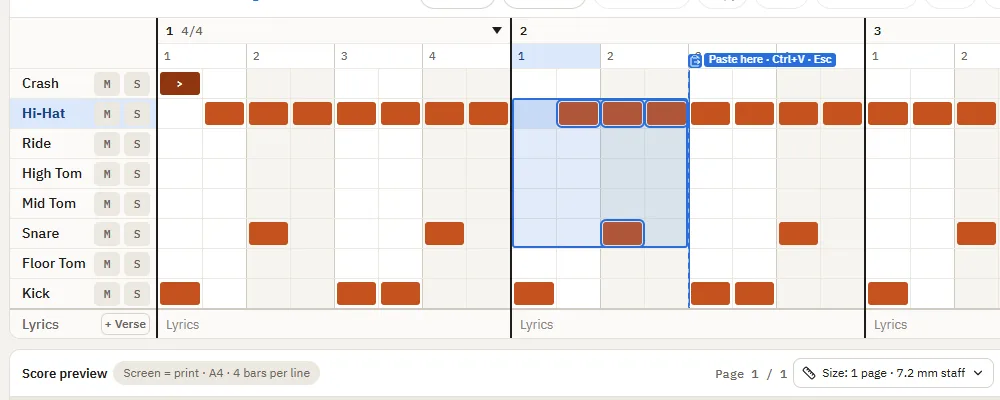
- Drag in the grid to select a rectangle: a time range (beats) × an instrument range (lines).
- Shift+click to extend the selection.
- Ctrl+C copies, Ctrl+X cuts, Delete clears.
- Click the cell where it should go, then press Ctrl+V. Ctrl+V pastes at the cell you clicked last (or at the start of a bar you picked by its number).
- While something is selected, clicking a cell doesn't add a note — it shows the paste position there (dashed outline plus "Paste here · Ctrl+V · Esc"). It also shows when you pick a bar by its number, and right after Ctrl+V (where the next paste goes).
- Ordinary clicks that enter notes show nothing, but Ctrl+V still pastes at that cell.
- The marker goes away with Esc, when you enter a note, or when playback starts. The position itself stays, so Ctrl+V after Esc still pastes in the same place.
- Mouse only? Right-click a cell → Paste here (it tells you what you copied: "copied range" / "n bars copied"). With a range or bars selected, right-clicking a cell, beat number or bar number puts Copy · Cut · Paste at the top of the menu.
- Notes keep their original instruments. Notes on the same instruments in the target range are replaced.
- Keep pressing Ctrl+V to paste right after the previous paste — handy for repeating a pattern.
- Notes that don't fit the target beat (tuplet vs. straight) are skipped, and you're told how many. Triplet and sextuplet beats accept each other's notes.
- With no range selected, Ctrl+C copies the selected bars.
- Press Esc to clear the selection.
5. Song structure (sections, repeats, jumps)
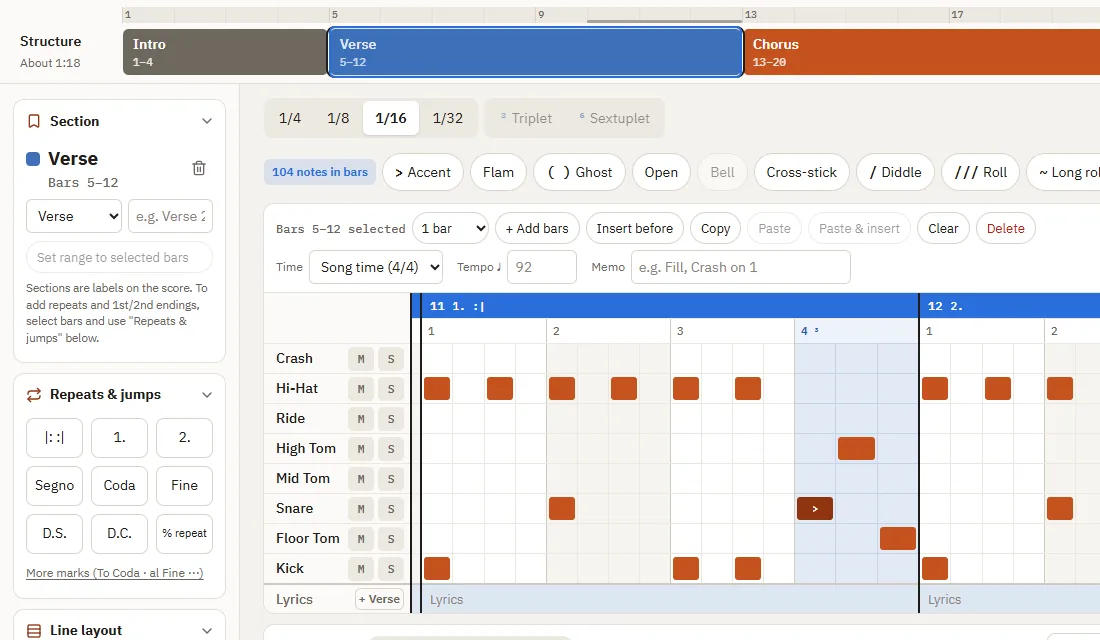
Sections are labels. They show names like Intro, Verse and Chorus on the score; they don't change the playing order or the repeat signs. Splitting a section or changing its range leaves the music as it is.
Adding a section
- Select a range of bars in the grid (click a bar number → Shift+click).
- Press + at the right of the section bar. Change the type (Intro, Verse, Chorus…) and name in the Section card in the left panel or from the section block's menu.
- If you selected two or more bars, the section covers exactly that range. With a single bar selected, it runs up to the next section.
Click a section block to edit it in the Section card in the left panel:
- Type and name (e.g. "Verse 2"), delete
- To change the range, select new bars in the grid and press "Set range to bars ○–○" in the Section card (also in the section block's menu).
- With New line for each section turned on (Line layout in the left panel), each section starts a new line on the score. Turn it off if you don't want that.
- On the score, section name boxes sit at the start of the line in the left margin, in the same place on every line. The margin is sized once for the song's longest section name (long names wrap to two lines in smaller type), and every line shows its first bar number.
Repeats, endings and jumps
The playing structure is set only in the Repeats & jumps card in the left panel. Select bars, then press a mark.
- |: :| repeat signs: repeat the selected bars. Set the number of times (2x, 3x…) in this card too
- 1st / 2nd endings: the endings at the end of a repeat. Big repeats across several sections work fine
- Segno · Coda · Fine · D.S. · D.C.
- % repeat: same as the previous bar (shows % on the score; playback repeats the previous bar)
- More marks: To Coda, D.S. al Coda, D.C. al Fine, 2-bar repeat and more
Playback and audio export follow these marks. "About 3:09" at the left of the section bar is the playing time with everything unrolled.
6. Lyrics
- Click the Lyrics row at the bottom of the grid to type. Tab next bar, Shift+Tab previous bar, Enter/Esc done.
- Extra spaces are kept (useful for roughly lining up with beats).
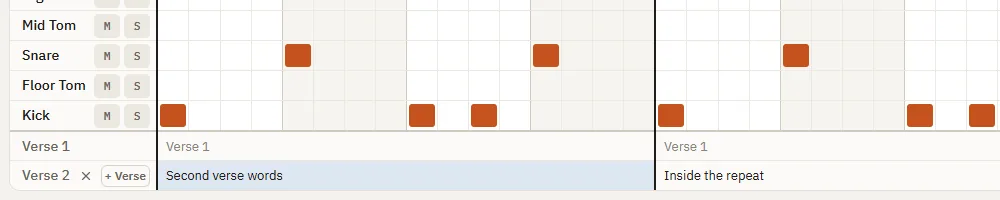
- Verses 2 and 3: press + Verse in the lyrics row label to add a 2nd and then a 3rd verse row (up to 3). Use ↑ ↓ to move between verses.
- On the score, verse 2 and verse 3 are stacked under verse 1, numbered "1." "2." "3."
- Writing verse 2 inside a repeat means you don't need a separate Verse 2, so the chart gets shorter.
- Turn off Notation → Show lyrics in the left panel to hide lyrics on the score.
7. Playback
- Space play/stop, Home back to the start. Click the ruler (the bar numbers above the section bar) to make that bar the playback start.
- Metronome (K) and Count-in (1 bar): in the top bar.
- Loop (L): drag on the ruler to repeat just that range. Turn it off with the × on "Loop 5–8 ×" at the left of the section bar, or press Esc.
- Change the drum sounds in Settings (gear).

Full screen
The Full screen button at the top right of the score preview shows just the score, big — great for practice.
- Click a bar to play from there (Space)
- Back to editing jumps to that bar in the editor; Esc closes
8. Score layout and printing
Line layout (left panel)
- Bars per line: 1, 2, 3, 4, 5, 6 or 8 (usually 4). 1 puts one bar on each line — handy for practice sheets; the bar stretches across the full line
- New line for each section: start a new line when the section changes
- Join short lines: lines left with only 1–2 bars (like a 2nd ending) are joined to the previous line (not used at 1 bar per line)
- Line break / Page break: before the selected bar
- To change the number of bars on one line only: click a bar in the score preview to show the line tool above that line (Join up · − · + · Default).
Notation
- Kick notation: Stems up (the kick shares stems with the hi-hat — compact and common in charts for playing; default) / Stems down (the kick gets its own downward stems — method-book style)
- Crash notation: X (plain x on the ledger line, the standard) / Circled (a circled x that stands out — common in Korean charts, though some readers take it for an open hi-hat). Only the notehead changes, not the position. New songs start with X in the English interface and Circled in the Korean one
- Beam eighths: By half bar (the default — in 4/4 bars, eighths on beats 1–2 and 3–4 share one beam) / By beat (a separate beam for every beat). Beats with sixteenths, triplets or rests, and bars not in 4/4, are always beamed by beat
- Drum key: a key of instrument positions at the top of page 1. Turn it on when you hand the chart to someone else (off by default).
- Multi-bar rest: for a run of resting bars (an intro or interlude), select 2 or more empty bars and choose Group as multi-bar rest (also in the bar-number right-click menu). The score draws them as one cell with a thick horizontal bar and the number of bars. Width sets how many cells it takes (1 up to the bars per line). Right-click a bar number to pick the width with the bar buttons (1 bar, 2 bars…) as you group, or right-click a grouped bar later to change it. If the lines shift, adjust them with Join up · − + at the top right of each score line. The grid still shows every bar, hatched, and you can't add notes to grouped bars — select any of them and click Ungroup. Playback, MIDI and audio treat them as empty bars. Bars with notes, repeats or jumps can't be grouped, and sections, lyrics and memos are only allowed on the first grouped bar
Printing
Use the Print button at the top (just left of Export), File > Print…, or Ctrl+P. The full-screen score view has a Print button too.
- DrumPen makes a PDF with the current settings (print size, line layout, notation) and opens your browser's print dialog right away. It looks exactly like the exported PDF.
- While the PDF is being made, the button shows "Preparing to print…".
- In browsers that can't open the print dialog directly (such as Firefox or Safari), the PDF opens in a new tab instead. Print it from there.
- Pressing Ctrl+P in DrumPen prints the score, not the app screen.

Print size
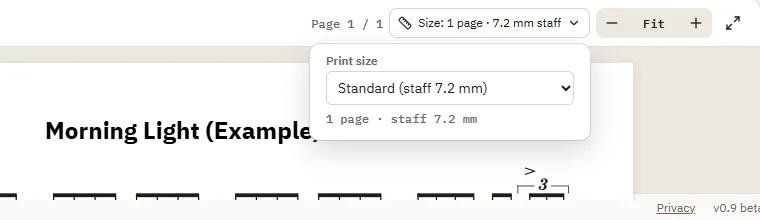
Print size in the left panel, or the "Size: 2 pages · 7.2 mm staff" button above the score preview (it sets the print size and page count; it doesn't print).
- Standard: 7.2 mm staff (a typical drum chart size). A song of average length fits on two A4 pages.
- Fit to 1/2/3 pages: the largest size that fits on that many pages. If it would get too small (staff under 7 mm), more pages are used and you're told. Lines you've arranged stay as they are.
- Custom: set the staff height in mm.
- − Fit + in the preview only zooms the screen; it doesn't affect printing.
Export
Export at the top right.
- PDF: A4 score, exactly as on screen
- PNG: one image per page (a zip for several pages)
- Audio (WAV): the song played through its structure. Choose the tempo, metronome, count-in, range and whether mute/solo apply.
- MIDI: to keep working in your DAW (Cubase, Logic, Ableton, Reaper and others). One drum track on channel 10, with repeats and jumps written out in playing order, plus tempo, time signatures and section names as markers. The only option is the range (whole song or loop range).
- Notes follow the General MIDI drum map: kick 36, snare 38, cross-stick 37, hi-hat 42 (open 46), ride 51 (bell 53), crash 49, toms 48, 45 and 43.
- If your virtual drum instrument uses a different note layout, remap it in your DAW or the instrument's mapping settings.
9. Saving
DrumPen saves in two ways.
| Auto-save | Save to file | |
|---|---|---|
| Where | Inside this browser | A folder on your computer (.drumpen file) |
| When | Automatically as you edit | Only when you save |
| Find it in | File > Song list | File > Open |
- File > Save (Ctrl+S): the first time, choose a folder and name; after that it updates the same file.
- File > Save As… (Ctrl+Shift+S): save as a new file.
- The bottom bar shows "File: ○○.drumpen · Saved" or "Unsaved changes".
- Close song: goes to the song list. Your song is auto-saved, so there's nothing else to do.
Switching songs (New song, opening from the song list, Open, Close song): the song you were editing is auto-saved, and a message "'○○' was saved automatically · reopen it from File > Song list" appears at the bottom for a few seconds with a Go back button that reopens it. (If you go back from a new song you haven't touched, that empty song isn't kept in the list.) If the song is linked to a file and has unsaved changes, you're asked first: Save and continue (saves to the file like Ctrl+S) / Continue without saving (the file stays as it was; the song is still auto-saved in the browser) / Cancel.
Note: If you clear browser data (cookies and site data) or switch computers or browsers, auto-saved songs won't be there. Always save important songs to a file.
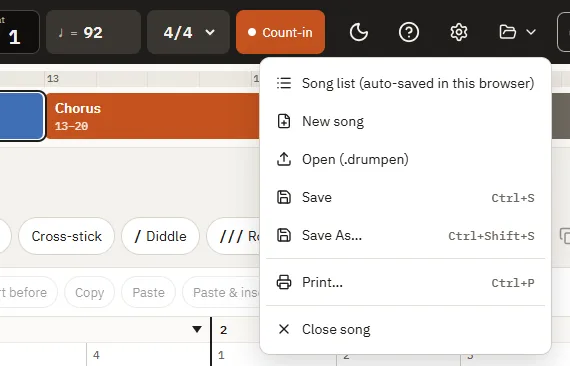
Downloading all your songs at once: click Download all at the top of File > Song list to get every song in this browser as .drumpen files in a single zip (no sign-in needed). You can open any of them again with File > Open.
Signing in and cloud storage
You can edit, play back, auto-save in this browser, and save or open .drumpen files without signing in. Sign up or sign in with Google or email from Sign in at the top right to also get:
- Cloud storage: your songs are saved to your account, so you can pick up where you left off on another device or browser by signing in to the same account.
- Exporting to PDF, PNG, WAV and MIDI, and printing
While you're signed in, account songs you delete from the song list go to the Trash and are deleted for good after 30 days (until then you can restore them from the Trash).
Account menu (when signed in)
Click the person icon at the top right.
- Download all my songs: downloads all your cloud songs (including the trash) plus the songs in this browser as one zip, in the folders
Account songs,TrashandThis device. If some changes haven't reached the cloud yet, the newer copy from this browser is used. Download all in the song list does the same while you're signed in. - Product news by email: turn emails about new features, pricing and more on or off. You'll see the date the change took effect.
- Sign out: signs you out in this browser. Your account songs stay in the cloud and are removed from this browser.
- Delete account: read the notice, then type your email address to enable the [Delete account] button. Requesting deletion signs you out on all devices, and your account and cloud songs (including the trash) are permanently erased after 7 days. Sign in again within 7 days and choose Cancel deletion to keep everything. Download anything you need first with Download all my songs in the same window.
10. Keyboard shortcuts
| Key | Action |
|---|---|
| Space | Play / stop |
| Home | Back to the start |
| L | Loop on/off |
| K | Metronome |
| T | Triplet on/off (selected beats) |
| Shift+T | Sextuplet on/off (selected beats) |
| A · F · G · O · B · X | Accent · Flam · Ghost · Open · Bell · Cross-stick |
| D · R · Shift+R | Diddle · Roll · Long roll |
| Option keys (with a range or bars selected) | Apply to the notes inside |
| Ctrl+P | |
| Esc | Clear range selection → clear bar selection · turn off loop |
| 1 – 4 | Resolution 1/4, 1/8, 1/16, 1/32 |
| Ctrl+wheel | Zoom the grid |
| Drag | Select a range (rectangle) |
| Click a beat number | Select that beat (Shift+click to extend, right-click for straight / triplet / sextuplet) |
| Shift+click | Extend the selection (bars, ranges) |
| Click (while selected) | Keep notes; select that cell as the paste position |
| Ctrl+click | Select notes one by one (clears range and bar selections) |
| Right-click | Copy · Cut · Paste (with a selection) · note options |
| Ctrl+C / Ctrl+X / Ctrl+V | Copy / cut / paste |
| Ctrl+Shift+V | Insert-paste bars |
| Delete | Clear the selected notes, range or bars (bars stay) |
| Ctrl+Delete | Remove the selected bars (later bars move up) |
| Ctrl+Z / Ctrl+Shift+Z | Undo / redo |
| Ctrl+S / Ctrl+Shift+S | Save / Save As |
| Tab / Shift+Tab, ↑ ↓ | (while typing lyrics) next/previous bar, other verses |
11. Using a tablet
On a tablet such as a Galaxy Tab or iPad, keyboard and mouse actions become finger and pen gestures. Everything else works the same as on a computer.
With your finger
| To | Do this |
|---|---|
| Add or remove a note | Tap a cell |
| Scroll the grid | Drag with one finger, or use the scrollbar under the grid (drag the thumb, or tap the track to jump) |
| Zoom in or out | Pinch with two fingers |
| Open a menu (right-click on a computer) | Long-press a cell, beat number, bar number or section block |
| See what a button does (hover tooltip on a computer) | Long-press the button |
| Select a range | Turn on [Select] in the toolbar and drag. Dragging to the edge of the grid scrolls it for you. Tap a note to select it, or tap two empty cells to make a range (in select mode, two fingers also scroll) |
| Clear the selection | [Deselect], or tap a bar number again when it is the only bar selected |
| Copy and paste | [Copy] in the bar tools row → tap where to paste (a cell or bar number) → [Paste here] above it (keep tapping to paste again; ✕ to stop) |
A pen (S Pen, Apple Pencil) works like a mouse: drag to select a range right away, tap to add notes, long-press or press the pen button for menus.
Landscape and portrait
- Landscape: the grid gets the most room. Open the score with [Score ⤢] in the toolbar to see it full screen (print size and line tools are there too).
- Portrait: the grid on top, the score preview below. The left panel (sections, symbols, line layout, notation) slides out when you tap [Panel] at the start of the toolbar.
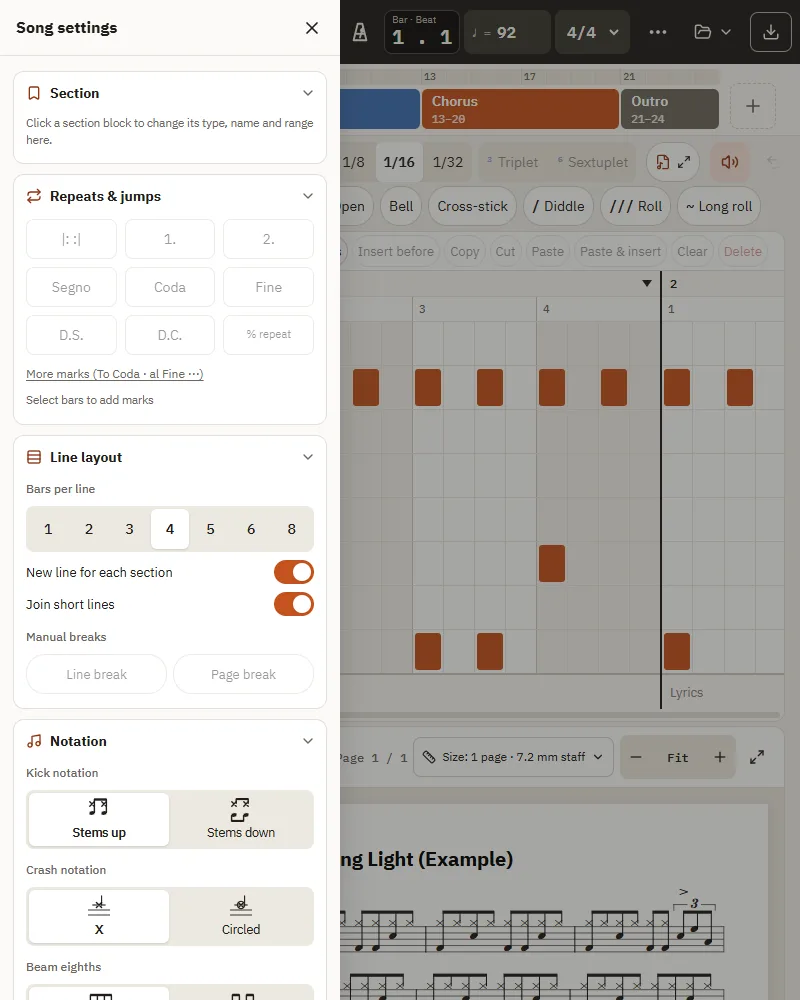
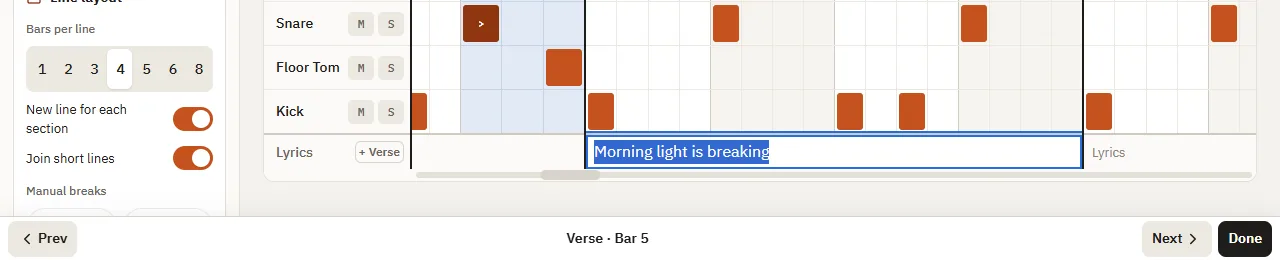
Lyrics bar
When you tap a lyrics cell, a bar appears right above the on-screen keyboard. It shows where you are typing (for example "Verse · Bar 23 · Verse 1"). [◀ Prev] and [Next ▶] move between bars without closing the keyboard, ▲ ▼ switch verses when there is more than one, and [Done] finishes. Enter on the keyboard also goes to the next bar.
Installing the app
Tap Install app in the bottom bar to put a DrumPen icon on your home screen. Opened from the icon, it uses the full screen without the address bar and keeps working offline for editing and playback (after you have opened it once). You can also keep using it in the browser.
- Chrome on Android: the install prompt opens right away.
- Samsung Internet: the install may be blocked by a security warning (Play Protect), so install from Chrome. Tapping Install app shows the address with a button to copy it.
- Other browsers: follow the guide — browser menu (⋮ or ≡) → Add to Home screen (or Install app).
- iPad (Safari): follow the guide — Share button → Add to Home Screen → Add.
- When a new version is out, "A new version is available [Refresh]" appears at the bottom. Tap it to save your work and reopen in the new version (otherwise you get it the next time you open the app).
- Offline, songs are still saved on this device. If you are signed in, they upload to the cloud when you are back online. Signing in needs an internet connection.
12. Using a phone
On a phone you can try DrumPen out and make quick edits. Long songs are easier on the bigger screen of a PC or tablet — sign in with the same account and pick up right where you left off.
The screen
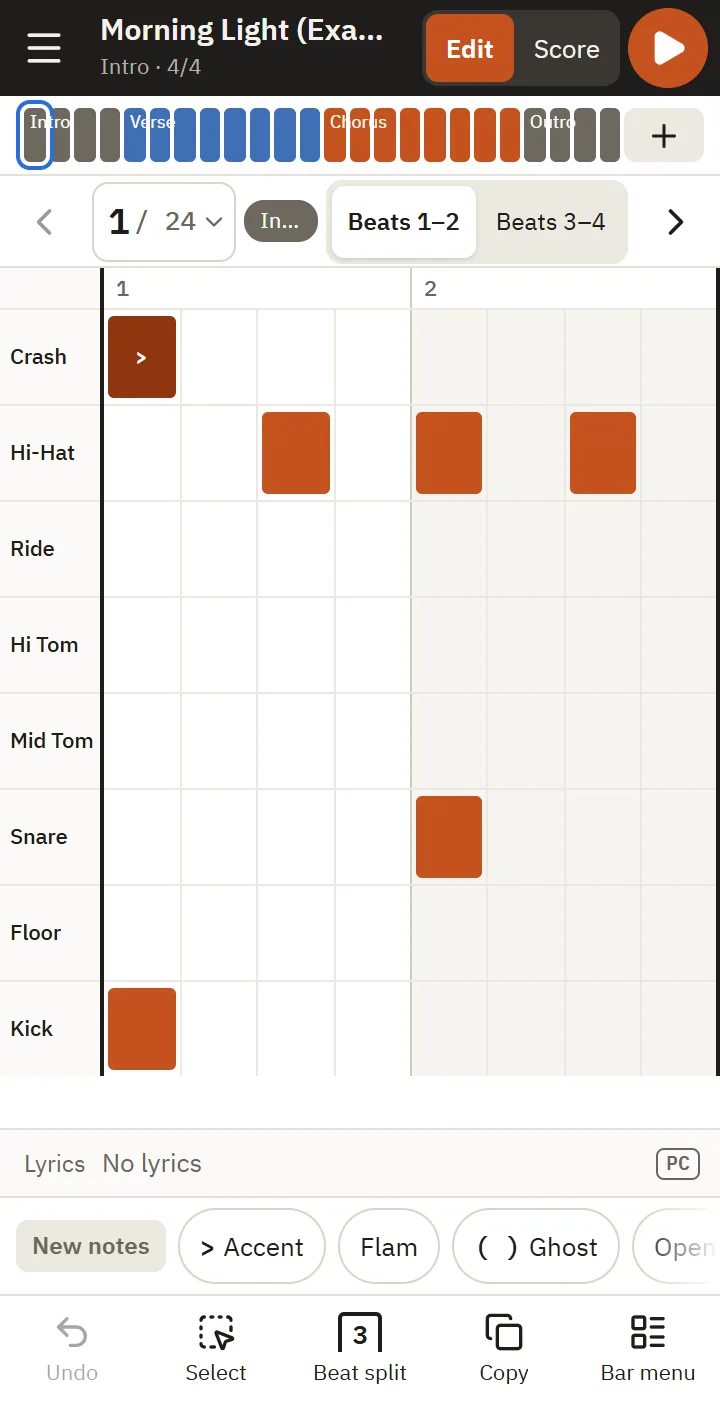
- Portrait: half a bar (two beats) at a time. Switch with [Beats 1–2 | 3–4] in the bar row, or swipe left and right. Note option chips sit under the grid, with the toolbar at the bottom.
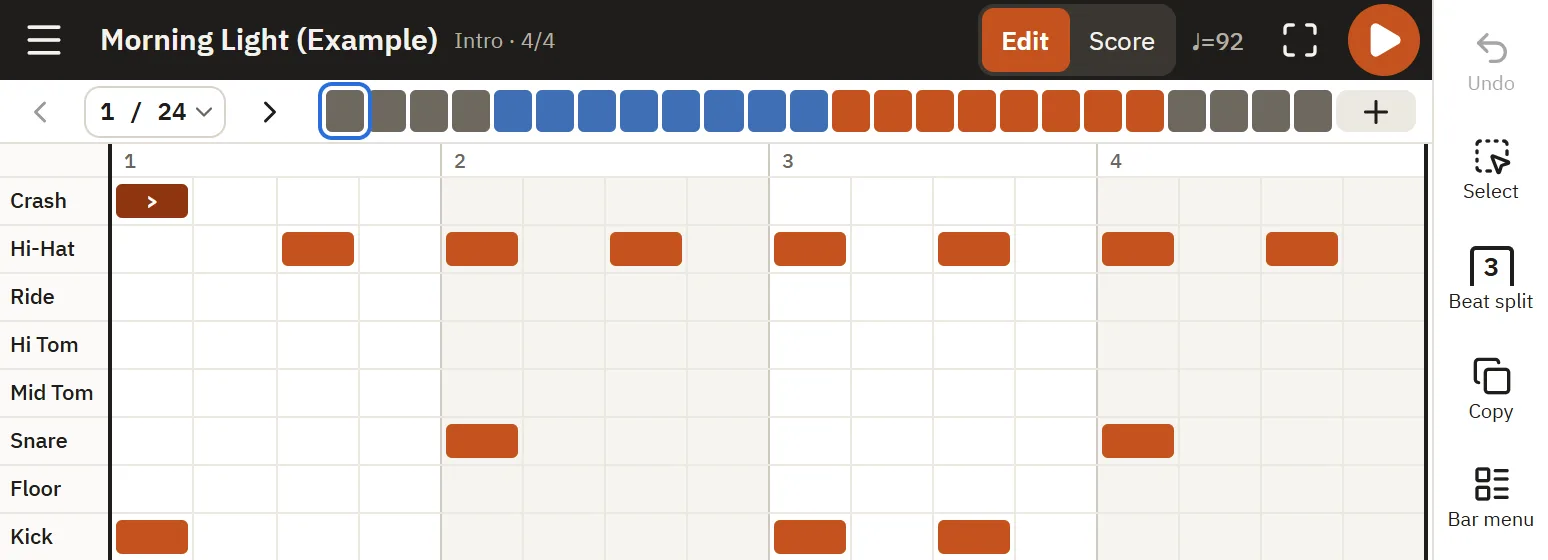
- Landscape: one whole bar at a time, with the tools in a column on the right. It has more room, so it's the better way to edit.
- The timeline at the top shows every bar as a tile in its section color. Tap a tile to go to that bar; [+] at the end adds a bar (empty, or a copy of the current bar).
- Tap "N / total" (current bar / bar count) to open the bar menu.
With your finger
| To | Do this |
|---|---|
| Add or remove a note | Tap a cell |
| Go to the next or previous half bar (bar) | Swipe the grid left or right (swipes that start at the very edge of the screen belong to the browser's back gesture and don't turn the page) |
| Note options and menus | Long-press a cell (in portrait, also the chips under the grid) |
| Select a range | Turn on [Select] in the tools and drag → copy, cut, paste or clear |
| Triplets | [Beat split] in the tools → normal, triplet or sextuplet |
Bar menu
[Duplicate bar N], [Empty bar after], copy, paste and clear, repeats and 1st/2nd endings (tap to open a row where you set the end bar and count — nothing changes until you tap [Create]), % repeat, time signature and tempo, and delete bar.
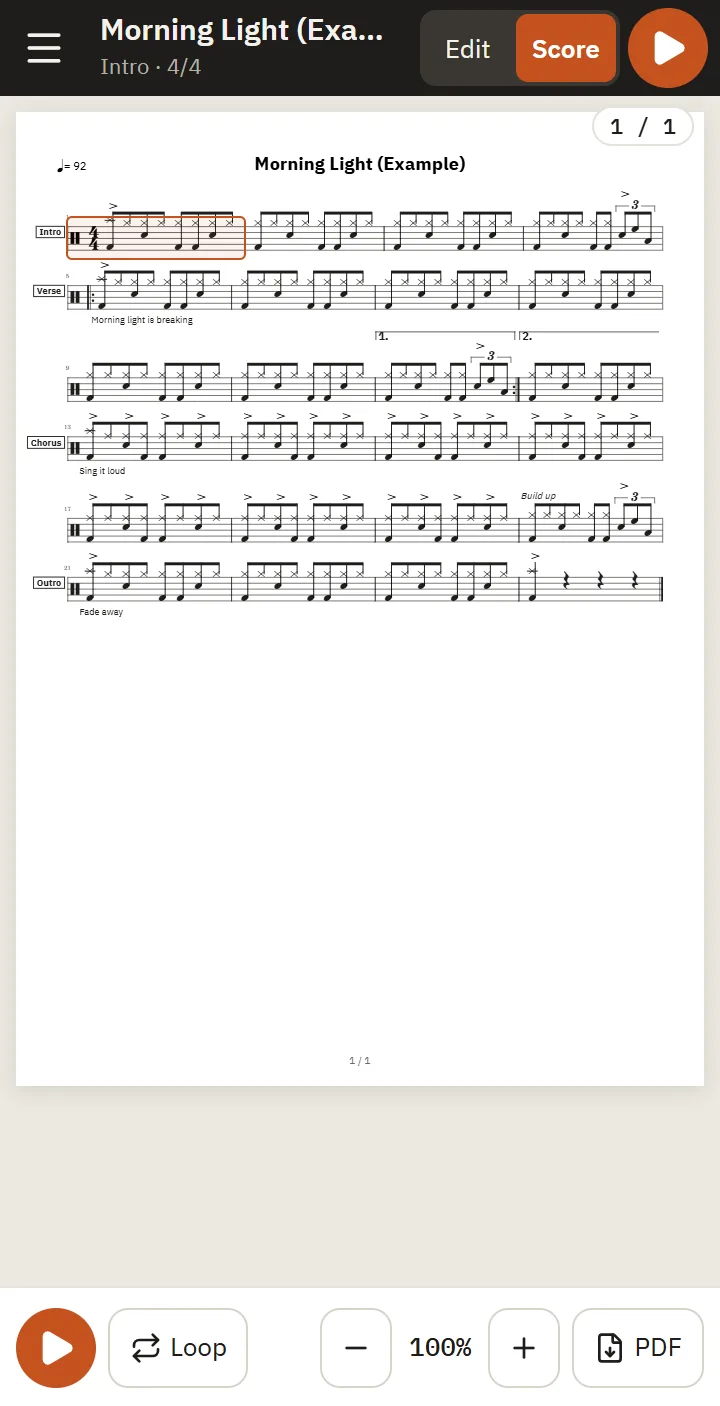
Score mode
Tap [Score] in [Edit | Score] at the top to see the A4 score as it will print, fitted to the screen width.
- Pinch to zoom in (up to 250%) and drag around the score while zoomed. Double-tap to switch between 175% and fit.
- Tap a bar to go back to editing that bar. Long-press a bar for [Play from here], [Edit this bar], [Loop this section] and [Loop 4 bars from here].
- The playback bar at the bottom: ▶/■ (the bar being played is highlighted, and the score scrolls to follow it — drag the score yourself and it stops following for that run), [Loop] (this section / 4 bars from here / off), Speed [−] 100% [+] (practice speed, 50–150% — this isn't zoom; the song's tempo doesn't change, and it's back to 100% the next time you open the app. In portrait, "Speed" appears in small type above the number), and [Save PDF] (export or share).
What a phone can't do
Score layout settings, printing, WAV and MIDI export, typing lyrics, jump signs (D.S., D.C., Coda), editing sections, multi-bar rests, range notes, sound settings and saving .drumpen files are for a PC or tablet. Buttons marked [PC] explain this when you tap them. Sections, repeats, lyrics and notes made on a computer still show up in the phone's score, and editing on the phone never removes them. Continue on a PC or tablet with the same account (sign in at the top of the ⋯ menu).
Installing the app and full screen
- When you open DrumPen in a phone browser, an install guide comes up first (open it again from Install as an app in the ⋯ menu). As an app, the address bar goes away and the editing grid gets taller. [Continue in browser] keeps using it as is.
- Chrome on Android: [Install app]. Samsung Internet and in-app browsers such as KakaoTalk can't install apps, so use [Open in Chrome] (or copy the link). iPhone: Safari's Share button → Add to Home Screen (in KakaoTalk and similar apps, first tap ⋯ → open in another browser). On an iPhone, the app also stays clear of Safari's swipe gestures.
- In landscape in Chrome on Android, [Full screen] in the top bar hides the address bar and status bar (Safari on iPhone doesn't have this).
About the beta
- DrumPen is free during the beta. Editing, playback and saving .drumpen files work without signing in; sign in for cloud storage across devices and for PDF, PNG, WAV and MIDI export and printing (see "Signing in and cloud storage" in 9. Saving).
- DrumPen works on desktop, tablet and phone (landscape and portrait). On a phone it's for trying things out and quick edits (see 12. Using a phone).
- Language: switch between English and Korean in Settings (gear) → Language.
- Privacy: if you don't sign in, your songs stay in this browser and are never sent to a server. See the Privacy Policy and Terms of Service for details.
- Contact: support@drumpen.com
Privacy Policy · Terms of Service · Back to DrumPen
ETS Corporation · CEO Kyu Jin Park · Business registration no. 525-81-00022 · 3F 3071-1, 95 Misagangbyeondong-ro, Hanam-si, Gyeonggi-do, Republic of Korea · support@drumpen.com